Overview:
This article walks through how to schedule a one-time payment that runs automatically on a specified date without recurring. Rather than setting up a recurring payment schedule, users can configure a single scheduled transaction for situations like a one-off payment for charges. Once processed, the payment will not repeat, and no further action is needed to prevent additional charges.
Payment Method Required
Regardless of whether you choose autopay or manual payments, you must have a
payment method saved in your account. See instructions on how to set up a payment method.
Note some payment methods have service fees associated with them
 - Visa/Mastercard Debit: Generally 0.99%
 - Visa/Mastercard Credit card: Generally 2.5%
 - PAD/ Direct Debit fees: Usually No fee - depends on the property management company.
Steps:
To schedule a payment that will only run once:
1. Go to the payments tab up on top, and select “auto payments” and then “create new schedule”
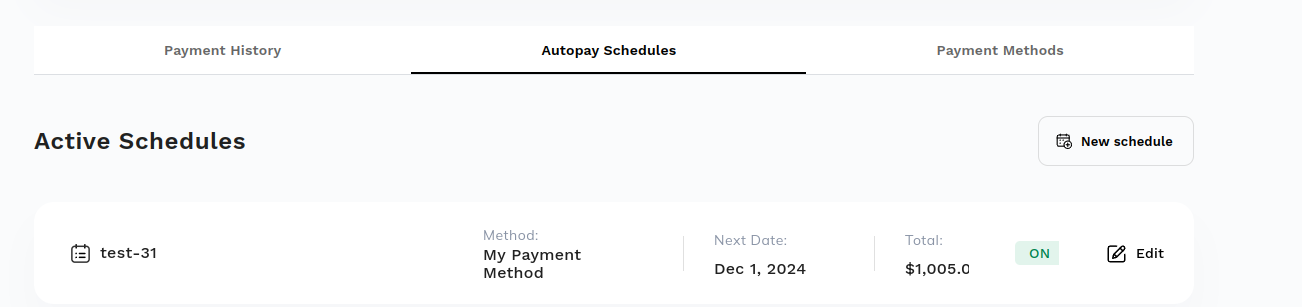
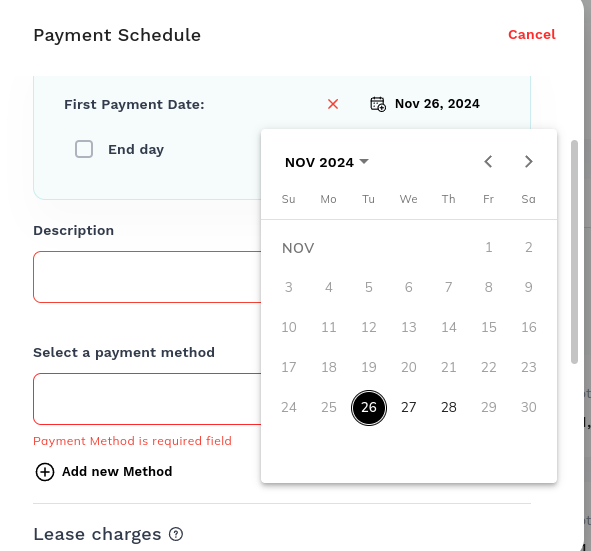
2. Add a Select First Payment Date using the calendar
3. Select an End Day - make this a day or 2 after the initial payment. For example, if you chose a payment day of Sept 1 make the end day Sept 2 or 3.
This step is important since if an end date is not chosen, the payment will be automatically pulled each month on the date you selected for “date of first payment”. For example, if you choose November 1, your rent will continue to be withdrawn on the 1st of every month. Unless you put in an end date.4. Add a Description for this payment schedule.
5. Select the payment method you just added under “Payment Method”, and ensure that the correct rent amount is in the “Payment Amount” box. You can change the % if your property offers a discount for early pay of rent.
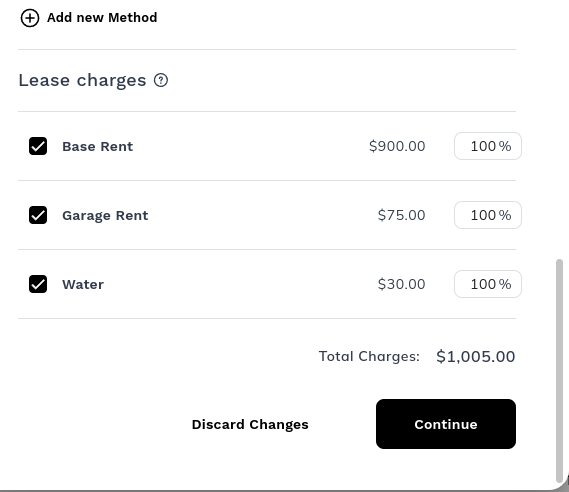
6. Click Continue and review the schedule
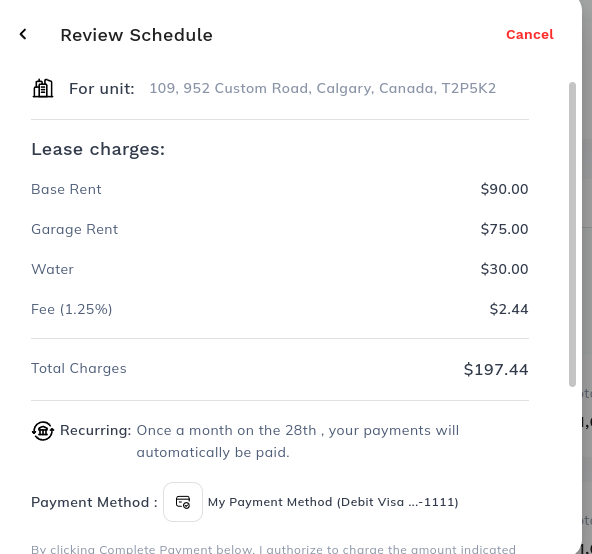
7. Select “Save Schedule”
Some companies have a setting to prevent custom amounts to be used for schedules. If you are having issues creating a schedule for a custom amount please reach out to support to see if your company has this setting turned on.Was this article helpful?
That’s Great!
Thank you for your feedback
Sorry! We couldn't be helpful
Thank you for your feedback
Feedback sent
We appreciate your effort and will try to fix the article