Overview
Tenants can set up a schedule to pay rent automatically.
Below are instructions on how to set up a recurring payment schedule.
In order to setup a payment schedule there must be payment method on file. Please see: Setting up a Payment Method
Steps:
To Create a Recurring Payment Schedule:
- Return to the payments tab up on top, and select “auto payments” and then “create new schedule”
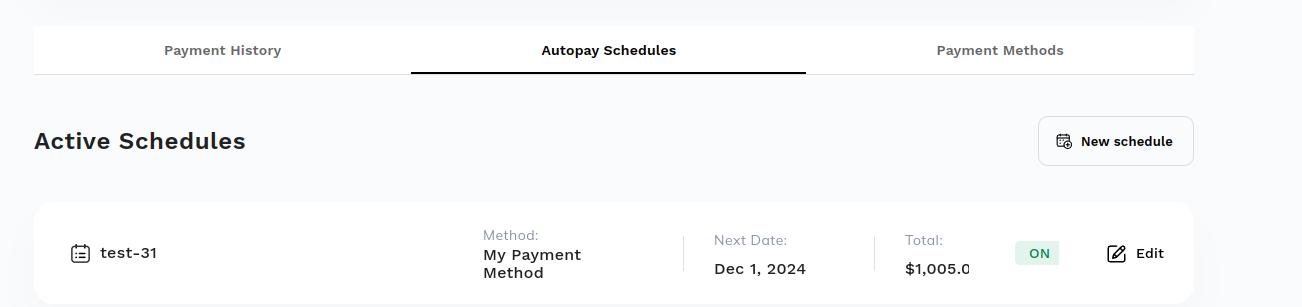
- Add a Select First Payment Date using the calendar
Your rent payment will be automatically pulled each month on the date you selected for “date
of first payment”. For example, if you choose November 1, your rent will continually to be
withdrawn on the 1st of every month. - Add a Description for this payment schedule.
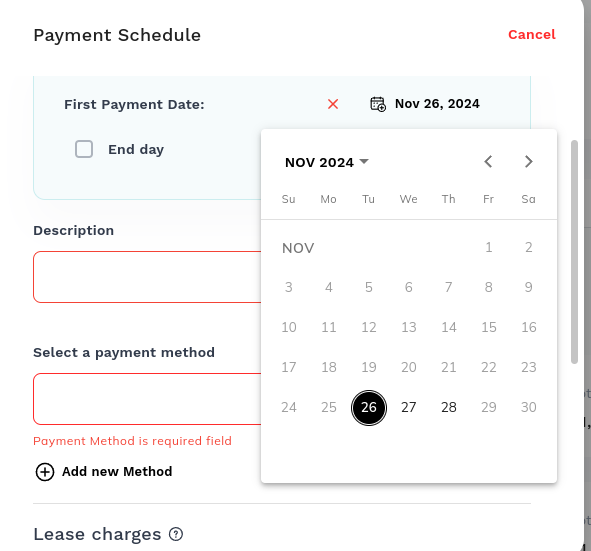
- Select the payment method you just added under “Payment Method”, and ensure that the correct rent amount is in the “Payment Amount” box. You can change the % if your property offers a discount for early pay of rent.
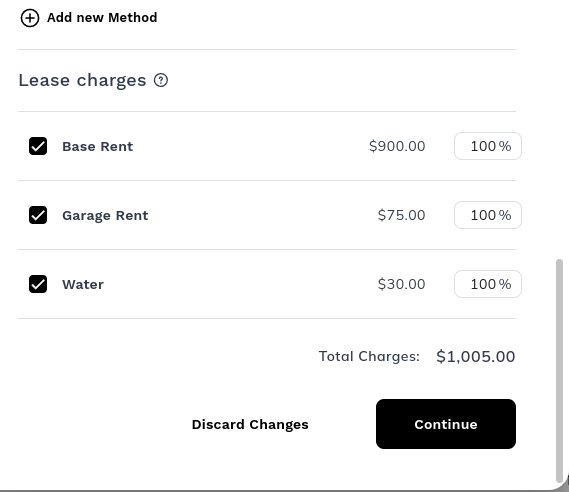
- Click Continue and review the schedule
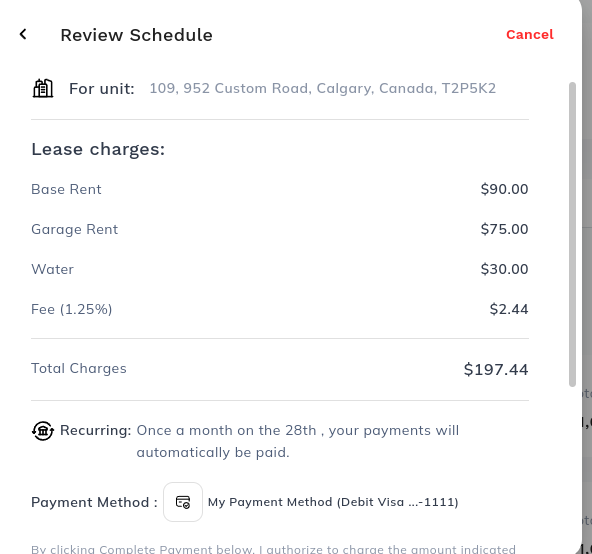
- Select “Save Schedule”
Some companies have a setting to prevent custom amounts to be used for schedules. If you are having issues creating a schedule for a custom amount please reach out to support to see if your company has this setting turned on.
If you have any questions or encounter any issues while using the Payquad portal, please feel free to reach out to your property management team or Payquad Support.
Was this article helpful?
That’s Great!
Thank you for your feedback
Sorry! We couldn't be helpful
Thank you for your feedback
Feedback sent
We appreciate your effort and will try to fix the article